Pipelines
The pipeline editor
Design your agent flow visually — steps, branches, loops, and triggers.
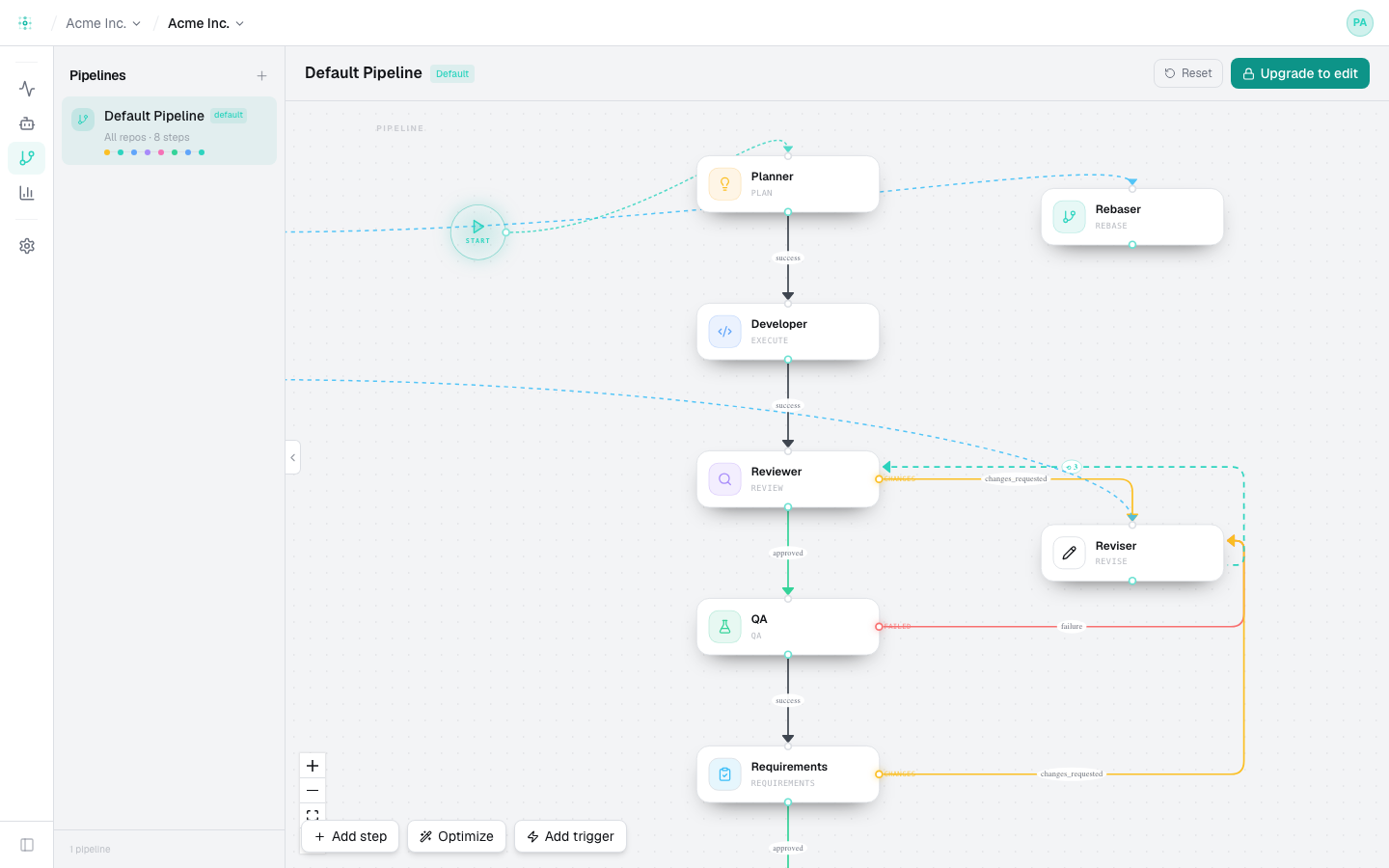
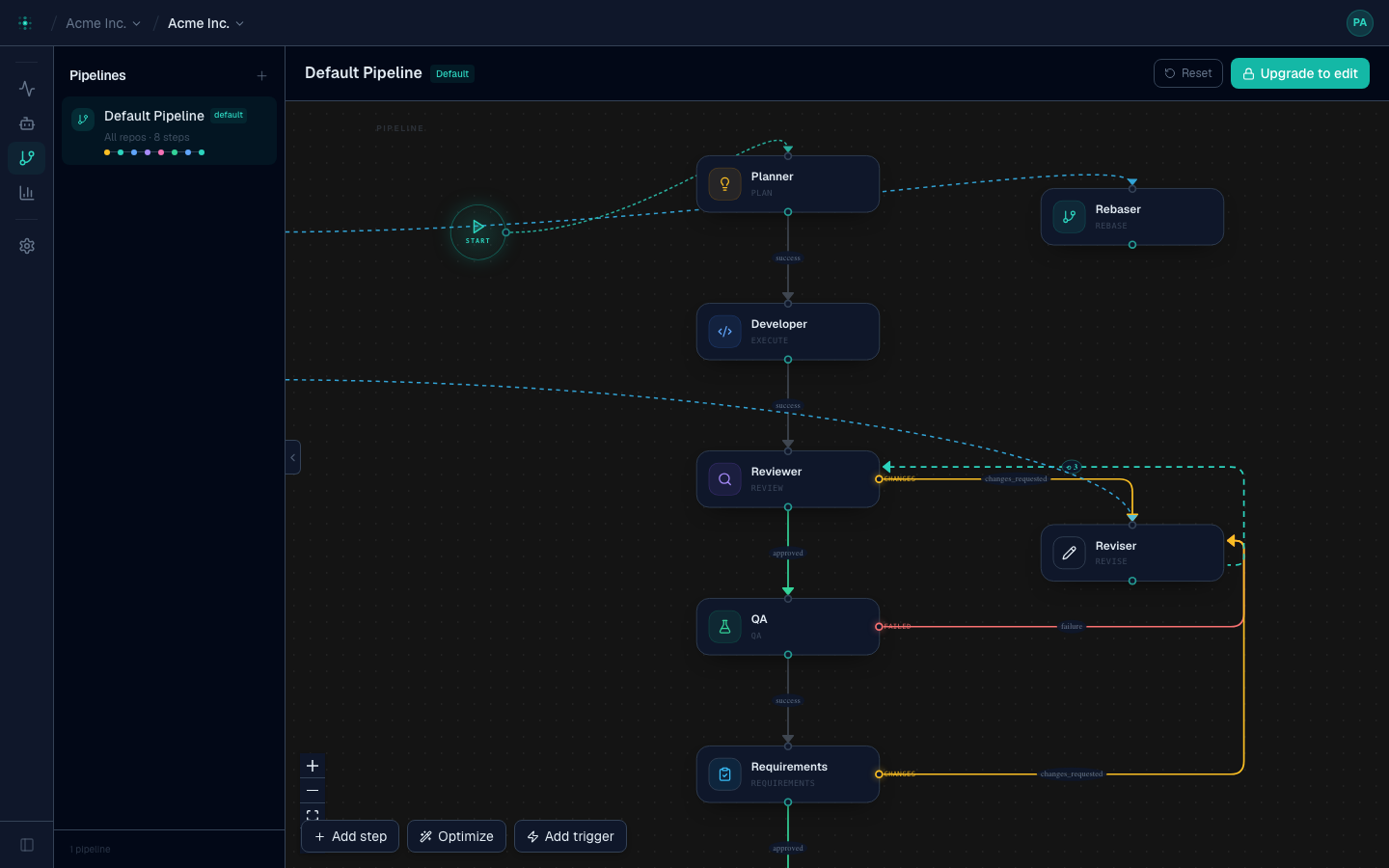
Each project has a pipeline: a directed graph of agent steps. The visual editor (under a project's Pipelines) lets you shape exactly how work flows.
Plan gating
Editing pipelines is a paid feature. On the Free plan the editor is view-only — you can see the flow but not change it. Upgrade to edit. See Billing.
Concepts
- Steps — each runs an agent (
plan,execute,review,qa,requirements,revise,rebase,merge, or a custom agent). - Edges — connect steps and carry a condition (the source agent's outcome, e.g.
approved,changes_requested,success,failure,revised). - Loops — a back-edge (e.g. Reviser → Reviewer) with a max-iterations cap, then an on-exhausted action (escalate or fail).
- Triggers — GitHub events (
branch_pushed,pr_comment,pr_merged) wired to a step. - Start — the step a new run begins at (the Planner by default).
Working in the editor
- Drag steps to arrange them; Optimize tidies the layout automatically (it lays the graph out top-to-bottom). Your manual positions are saved and respected on open.
- Add step to insert an agent; connect its handles to wire edges.
- Add trigger to fire a step on a GitHub event.
Prefer text? Manage the whole pipeline as code.